





When it finishes, open the .dmg and drag Tomoshi into Applications. The package is signed and notarised by Apple, so nothing will block it.
While you are here: the Safari extension is already installed
The Tomoshi select-to-look-up extension came with the app, so there is nothing else to download. Safari does insist that you turn it on yourself, which takes the three steps below.
Tick Tomoshi in Safari settings
Open Safari → menu bar Safari → Settings… → the Extensions tab → tick Tomoshi in the list.
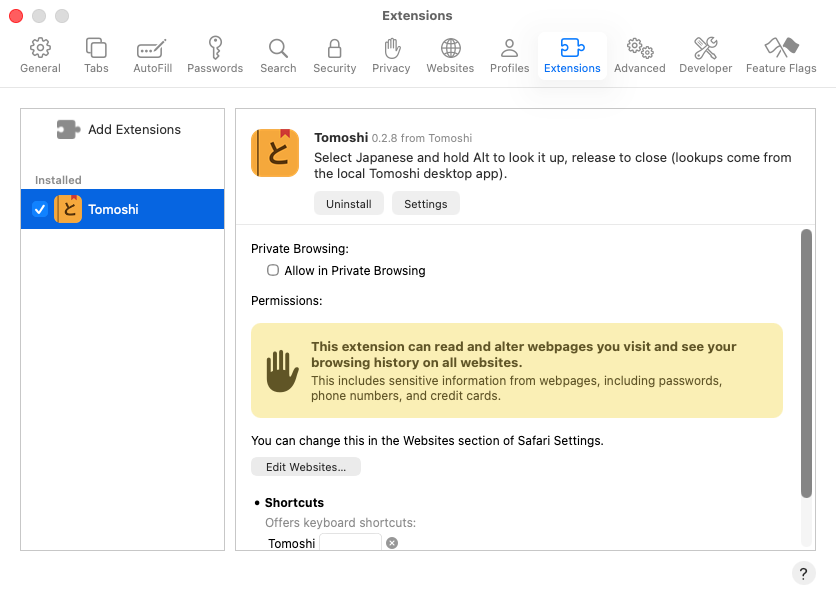
Not there at all? Launch the Tomoshi desktop app once, then quit and reopen Safari: the extension arrives with the app, and Safari only lists it after a rescan.
Allow it to read web pages
Once ticked, a Tomoshi icon appears in the Safari toolbar with an orange exclamation mark — that means it has not been granted access yet:

Click it and Safari asks how much access to grant. The three options differ:
- Always Allow on Every Website — the least fuss; select-to-look-up then works on any page. Safari asks you to confirm once more.
- Always Allow on This Website — more conservative, but you have to grant access again on every new site.
- Allow for One Day — a trial run; you grant access again the next day.
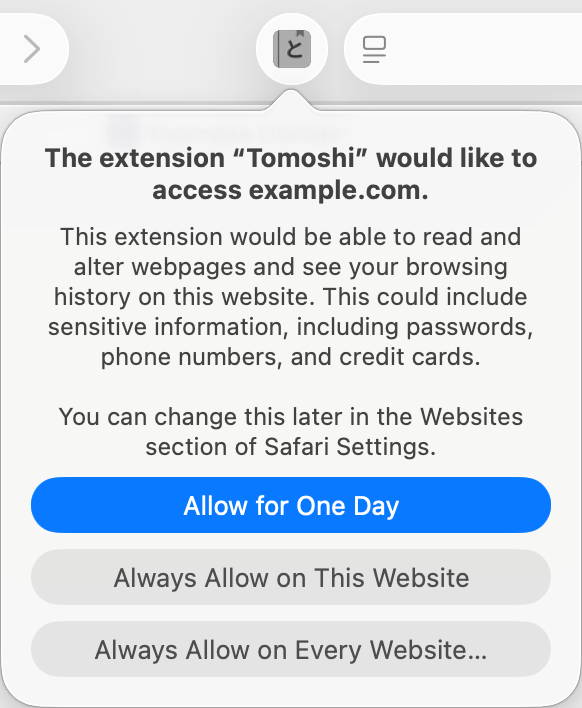
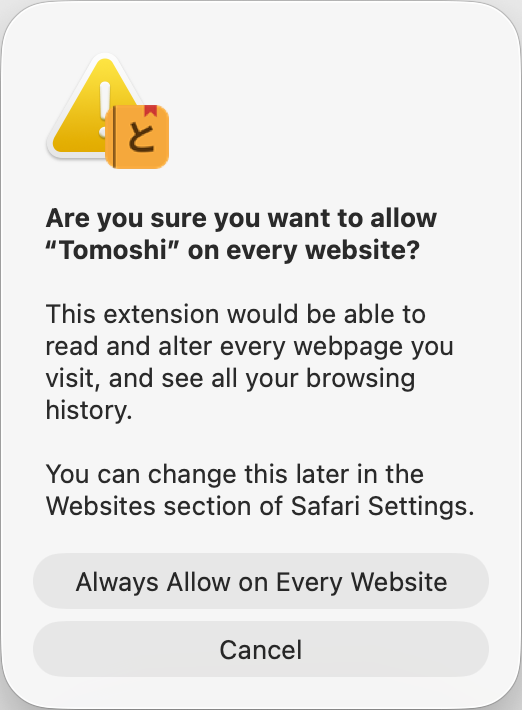
Choosing “Always Allow on Every Website” brings up one more confirmation (right); click the button of the same name.
The line about “passwords, phone numbers and credit cards” in that dialog is Safari’s blanket warning for every extension, not something specific to Tomoshi. The Tomoshi extension only reads the text you select yourself, and only sends it to the Tomoshi app running on your own machine (
127.0.0.1) — never through a server. Its source is open under AGPL-3.0 and can be audited; see the privacy policy.Select Japanese, hold Alt
Select a Japanese word or sentence on any page and hold ⌥ Alt to bring up the definition, pitch accent and audio; release to close. The trigger key can be changed in the extension’s settings.
Lookup and audio both come from the Tomoshi desktop app on your machine, so keep it running while you use the extension (minimised or in the menu bar is fine). Audio is played by the desktop app, which is why muting the browser tab has no effect on it.
Using Chrome or Edge?
Those two live in their own stores — install from there. They do not ship with the desktop app and none of the three steps above apply, but they do still need the desktop app running.
For the fuller write-up see the browser extension page.